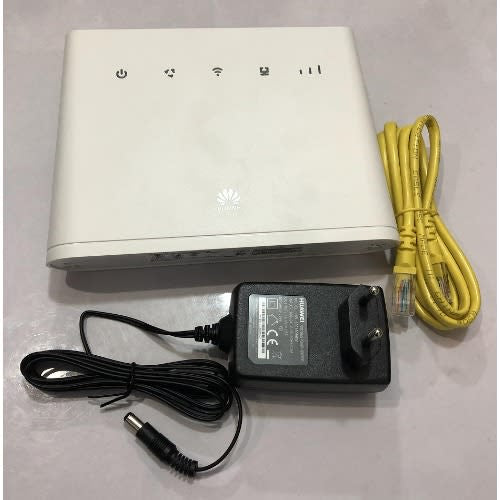


Huawei 4G/5G Universal Wireless Wifi Router LTE 300Mbps Mobile MiFi
Huawei 4G/5G Universal Wireless Wifi Router LTE 300Mbps Mobile MiFi
Regular price
R 1,999.00
Regular price
Sale price
R 1,999.00
Unit price
per
Tax included.
Couldn't load pickup availability
LTE CPE is a new 4G LTE CPE Router with technology that enables you to browse the internet and download at high optimum speed, at home, at your office or at a business center.
It Supports Ntel 4G, Airtel 4G, Airtel 3G, MTN 4G, MTN 3G, 9Mobile 4G, 9Mobile 3G, GLO 4G, GLO 3G, Smile 4G Etc
Key Technology
- 150MBbps download speed support LTE Cat4, leading the industry
- 200 meters coverage support Wi-Fi 11n2*2, up to 32 users
- HiLink APP: Use smart phone’s or pads APP for easier management
- VPN Passthrough: Convenient for small enterprise set up private network.
- Voice Service: Support voice function.
Product Specifications
- Wi-Fi 802.11 b/g/n access point & 2×2 MIMO, 4 SSID configuration and Wps supported
- LTE Cat4/DC-HSPA+/HSPA+/HSPA/UMTS/EDGE/GPRS/ GSM.
- FDD LTE: Download speed up to 150Mbps/Upload speed up to 50Mbps @20Mbps.
- TDD LTE : Download speed up to 112Mbps/Upload speed up to 10Mbps @20Mbps.
- High-speed Data Service &Voice Service.
- SMS and Group message (Up to 10 numbers) supported.
- Those features vary with the actual network environment.
1. Getting to know your B310
a. Power indicator
– On: the B310 is powered on.
– Off: the B310 is powered off.
b. Network mode indicator
- Steady cyan: connected to an LTE network
- Steady blue: connected to a 3G network.
- Steady yellow: connected to a 2G network.
- Steady green: connected to an Ethernet network.
- Steady red: The SIM is not recognized, the PIN has not been entered, or the PIN verification failed
- Failed to connect to a mobile network or an Ethernet network.
c. Wi-Fi/WPS indicator
– Steady on: Wi-Fi turned on.
– Blinking: a WPS connection is being set up.
– Off: Wi-Fi turned off.
d. LAN/WAN
– Steady on: LAN/WAN port is connected to a LAN device or an Ethernet port.
– Blinking: data is being transmitted through the LAN/WAN port.
– Off: LAN/WAN port is not connected to a LAN device or an Ethernet port.
e. Signal Strength indicator
– On: signal reception available (more bars mean better reception)
– Off: no reception.
f. SIM card slot
– Install a standard SIM card to access the internet via an LTE/3G/2G data connection.
g. External antenna port
– Connect to external antenna after remove the cover.
h. WPS button
– Press and hold for 2 or more seconds until is blinking to active WPS connection when Wi-Fi is turned on.
i. Power button
– Press and hold for about 3 seconds to power the B310 on or off.
j. Reset button
– Restoring the default settings of the B310 will erase all previous settings.
When the B310 is powered on, use a sharply pointed object to press and hold for about 3 seconds until indicator is blinking to restore the B310 to its factory settings. After the factory defaults are restored, the B310 will restart automatically.
k. Power port
– Connect to compatible power adapter
l. LAN/WAN port
– Working as a LAN port when connected to a computer, switch, or other LAN device.
– Working as a WAN port when connected to an Ethernet port on the wall.
m. Telephone port: connect to a telephone.
2. Installation
a. Accessing the Internet using an LTE, 3G, or 2G network
step 1: Installing the SIM card
– Slide off the card slot cover
– Insert the SIM card into the card slot. Ensure that the beveled edge of the SIM card aligns with that of the card slot.
– Close the card slot cover.
Step 2: Connecting cables
– To prevent interference caused by radio signals, place the B310 at least 1 meter (3.28 feet) away from telephone and other electrical devices.
Once connected to a power outlet, the B310 automatically powers on
– Power adapter
– Computer
– Telephone
– Laptop, tablet, or smart phone.
Optional: Installing the external antenna
– Power off the B310 and disconnect it from the power outlet.
– Remove the cover from the antenna port. (keep it in a safe place)
– Install one or two external antennas as you need. Make sure the anntennas are securely connected to the antenna ports.
b. Accessing the Internet using Ethernet
Connect the B310 to a well-mounted Ethernet port or an ADSL modern for internet access.
– To prevent interference caused by radio signals, place the B310 at least 1 meter (3.28 feet) away from telephone and other electrical devices.
once connected to a power outlet, the B310 automatically powers on.
– Power adapter
– Ethernet port on the wall
– Telephone
– Laptop, tablet, or smart phone